
Start with a title
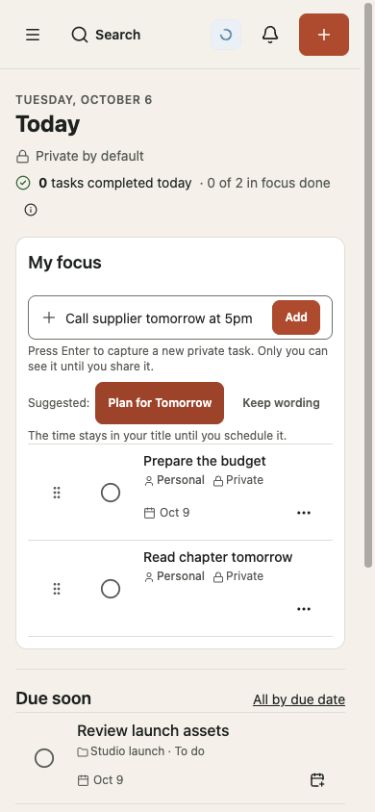
Use Add task in the app header or the capture field in Today. A title is enough to create a private task. You can choose a plan, add dates, or share it later.
- Write an action you can recognize later.
- Select Add or press Enter in the capture field.
- Check that the task has saved, then open it to add more detail.
Review a date suggestion
The update in testing can offer a planning-day suggestion when your title includes words such as “tomorrow.” Choose Plan for Tomorrow to accept the suggestion, or Keep wording to leave it in the title.
A planning day chooses when you want to work on a task. It does not establish a timed appointment. The time stays in the title until you schedule it.
Add a little context
Open the task to change its status, add a note, choose a priority, or set a due date. A checklist is useful when a task has a few small steps. Use a plan when the work needs its own structure, views, or project settings.
Wait for the saved state before leaving a change. If the app shows a local draft or retry message, your change still needs to reach the server.